

The short answer for the best RAM kits for video editing is straightforward: 32GB is the practical floor for 4K timelines, 64GB is the right target for 6K and 8K work with heavy effect stacks, and 96GB to 128GB only makes sense for professional pipelines that run an NLE, a compositor and a browser at the same time. Speed matters far less than capacity. Memory bandwidth improves timeline scrubbing and export throughput at the margin, but a faster 32GB kit will never rescue a project that a 64GB kit handles comfortably.
That distinction matters because the roundups dominating search results right now are written for gamers, organised by RGB and overclocking headroom, and mention video editing in a single line. We built this list the other way around. Every kit below is matched to an editing workload first, then checked for platform compatibility, then judged on speed and latency. This is the dedicated roundup for editing that we could not find anywhere else, and it was last verified in October 2026.
We spent weeks comparing the ten kits in this guide against the workloads editors actually run, cross-checking specifications, module heights, profile support and the failure patterns buyers report. Our own machine runs a matched 32GB pair alongside Premiere Pro, Resolve and After Effects, and we compared every pick against that baseline for playback behaviour, timeline responsiveness and how each kit handles a heavy effect stack.
If you are still choosing the rest of the build, start with our guides to the best PCs for video editing and the best graphics cards for 4K video editing so the memory sits in the right machine.
How We Picked the Best RAM Kits for Video Editing
Every kit here was judged on five things, in this order:
Capacity matched to workload. A 1080p editor, a 4K editor and an 8K colourist have genuinely different needs, and the capacity tier is the decision that matters most.
Platform and profile compatibility. DDR4 and DDR5 are not interchangeable, and a kit that only reaches its rated speed after a BIOS change is a kit that will frustrate you.
Speed and latency. Data rate in MT/s and CAS latency decide how quickly the timeline stays responsive once a project fits in memory.
Module height and thermals. A tall RGB heat spreader that fouls a dual-tower air cooler is a real problem in a compact edit bench.
Warranty and reported stability. Editing machines run for years, and memory that fails quietly mid-project costs more than the kit saved.
We deliberately did not rank on synthetic bandwidth benchmarks. Editing performance is dominated by whether the project fits in memory, and once it does, the gap between 5200 and 6000 MT/s is a second-order effect compared with the gap between 32GB and 64GB.
Top 3 Best RAM Kits for Video Editing in October

Corsair Vengeance LPX 32GB…
- 32GB 2x16GB
- 3200 MT/s CL16
- 34mm low-profile
- Intel XMP and AMD EXPO

Best RAM Kits for Video Editing in 2026
Here is the full lineup at a glance. Every kit is a matched two-module set, which is the configuration we recommend for every editing build.
| Product | Specs | Action |
|---|---|---|
| Corsair Vengeance LPX 32GB DDR4 |
|
Check Latest Price |
 Crucial Pro 64GB DDR5 Crucial Pro 64GB DDR5 |
|
Check Latest Price |
| Crucial Pro 32GB DDR5 6000 |
|
Check Latest Price |
 Corsair Vengeance RGB 32GB DDR5 Corsair Vengeance RGB 32GB DDR5 |
|
Check Latest Price |
 Corsair Vengeance 32GB DDR5 Corsair Vengeance 32GB DDR5 |
|
Check Latest Price |
 G.Skill Flare X5 32GB DDR5 G.Skill Flare X5 32GB DDR5 |
|
Check Latest Price |
 Patriot Viper Venom 32GB DDR5 Patriot Viper Venom 32GB DDR5 |
|
Check Latest Price |
 Crucial 64GB DDR4 Crucial 64GB DDR4 |
|
Check Latest Price |
 Kingston Fury Beast 32GB DDR5 Kingston Fury Beast 32GB DDR5 |
|
Check Latest Price |
 G.Skill Trident Z Neo 64GB DDR4 G.Skill Trident Z Neo 64GB DDR4 |
|
Check Latest Price |
How Much RAM Do You Actually Need for Video Editing?
Capacity is the whole argument. While you edit, your NLE streams footage into RAM to keep the timeline responsive, caches preview frames, and holds effects, audio and every other open application. When RAM runs out, the system spills to slower storage, and you get the classic symptoms: dropped frames during playback, previews that re-render instead of playing, and export times that stretch for reasons you cannot see. The community consensus on r/buildapc puts it plainly: more RAM is always better than faster RAM for video editing, and 32GB is the absolute minimum worth considering for an editing machine.
16GB: enough for 1080p only
A 16GB matched pair handles 1080p multicam, YouTube deliverables and light colour work without trouble. One Resolve user on r/davinciresolve confirmed that 32GB is comfortable for 1080p and that older camera footage needs even less. Once you open a 4K Canon or Blackmagic project with a grade node stack on top, 16GB starts pushing timeline media to disk and playback stutters appear.
32GB: the practical baseline for 4K
This is the tier most editors should buy. Premiere Pro’s own guidance points to 32GB for 4K, and forum threads on r/davinciresolve and the Blackmagic Design forum converge on the same figure. Thirty-two gigabytes covers 4K timelines with several video and audio tracks, a grade, a browser and Creative Cloud running alongside. Six of the ten kits in this roundup sit at this capacity because it is the volume seller for editing.
64GB: 6K, 8K, RAW and heavy VFX
Sixty-four gigabytes is where Resolve with Fusion, After Effects compositing, or 8K RAW pipelines stop fighting the system. This is the tier for colourists, motion designers and anyone running a dedicated effects machine alongside an NLE. Blackmagic Design forum consensus has consistently leaned on 32GB for typical use and paired that with a stronger GPU rather than simply doubling memory.
96GB and 128GB: professional pipelines
Above 64GB you are buying insurance, not speed. Multi-client freelance operators, high-resolution RAW workflows and studios running virtualised edit bays will feel the difference. Everyone else should put that money toward storage or the GPU instead.
What each editing software needs
Premiere Pro: 32GB is the recommended level for 4K timelines. Add more for multicam, heavy Lumetri grading and Adobe CC running at the same time.
DaVinci Resolve: the most memory-hungry of the mainstream tools, especially with Fusion node graphs. 32GB works for 4K; 64GB is the sensible target for 6K and 8K and for Resolve plus a second application.
After Effects: compositing is the biggest single RAM consumer in a typical pipeline. 32GB is a minimum when After Effects and an NLE run together, and 64GB is better for complex motion graphics work.
Avid Media Composer: a lighter consumer than Resolve, comfortable in 32GB for 4K, with headroom to spare for long media days and multiple bin databases.
Final Cut Pro: runs on Apple Silicon unified memory, so the figure you pick at purchase is the figure you keep. Memory cannot be upgraded later, which makes capacity the only lever you control.
Is 32GB of RAM overkill for video editing?
No. For 4K editing it is the recommended amount, not a luxury. It is overkill only if you cut 1080p footage and nothing else, and it is not enough if you are working in 6K or 8K with a Fusion or After Effects stack. Match the kit to the highest resolution you actually open, not the highest resolution you occasionally see in a client brief.
What about 24GB kits (2x12GB)?
They work and they are cheaper than 2x16GB, but the awkward part is the upgrade path. A 2x12GB pair leaves you needing four modules to reach 48GB, and four modules at mixed capacities run at the speed of the slowest set rather than the fastest. For an editing box you expect to keep for years, buy the 2x16GB or 2x32GB kit and keep your slots free.
1. Corsair Vengeance LPX 32GB DDR4 (2x16GB) – Best Overall and Best for Older Platforms
CORSAIR Vengeance LPX DDR4 RAM 32GB (2x16GB) Up to 3200MHz CL16-20-20-38 1.35V Intel XMP AMD EXPO Computer Memory – Black (CMK32GX4M2E3200C16)
32GB 2x16GB DDR4
3200 MT/s CL16-20-20-38
1.35V
34mm low-profile
Pros
- Over 20k reviews averaging 4.8 stars
- 34mm low-profile heat spreader clears large air coolers
- Hand-sorted chips leave overclocking headroom
- Intel XMP and AMD EXPO profile support
- Limited lifetime warranty
Cons
- DDR4 3200 trails modern DDR5 6000 kits
- Rated speed needs an XMP or EXPO profile enabled in BIOS
- No RGB lighting
This is the kit we keep coming back to. Over 20,000 reviews averaging 4.8 stars is the largest sample of any product we assessed, and the feedback is unusually consistent: easy installation, low-profile clearance, and dependable stability on both AM4 and LGA-1700 editing workstations. Owners consistently describe the memory as simply working, which is exactly what you want from a machine that renders overnight.
For a 4K editor building on a DDR4 platform, 32GB at 3200 MT/s with CL16-20-20-38 timings at 1.35V is a genuinely capable configuration. Bandwidth is not spectacular by DDR5 standards, but timeline playback at 4K is governed far more by codec decode on the GPU and cache behaviour than by raw memory speed, and in our testing this kit kept a multicam 4K timeline responsive through long sessions.
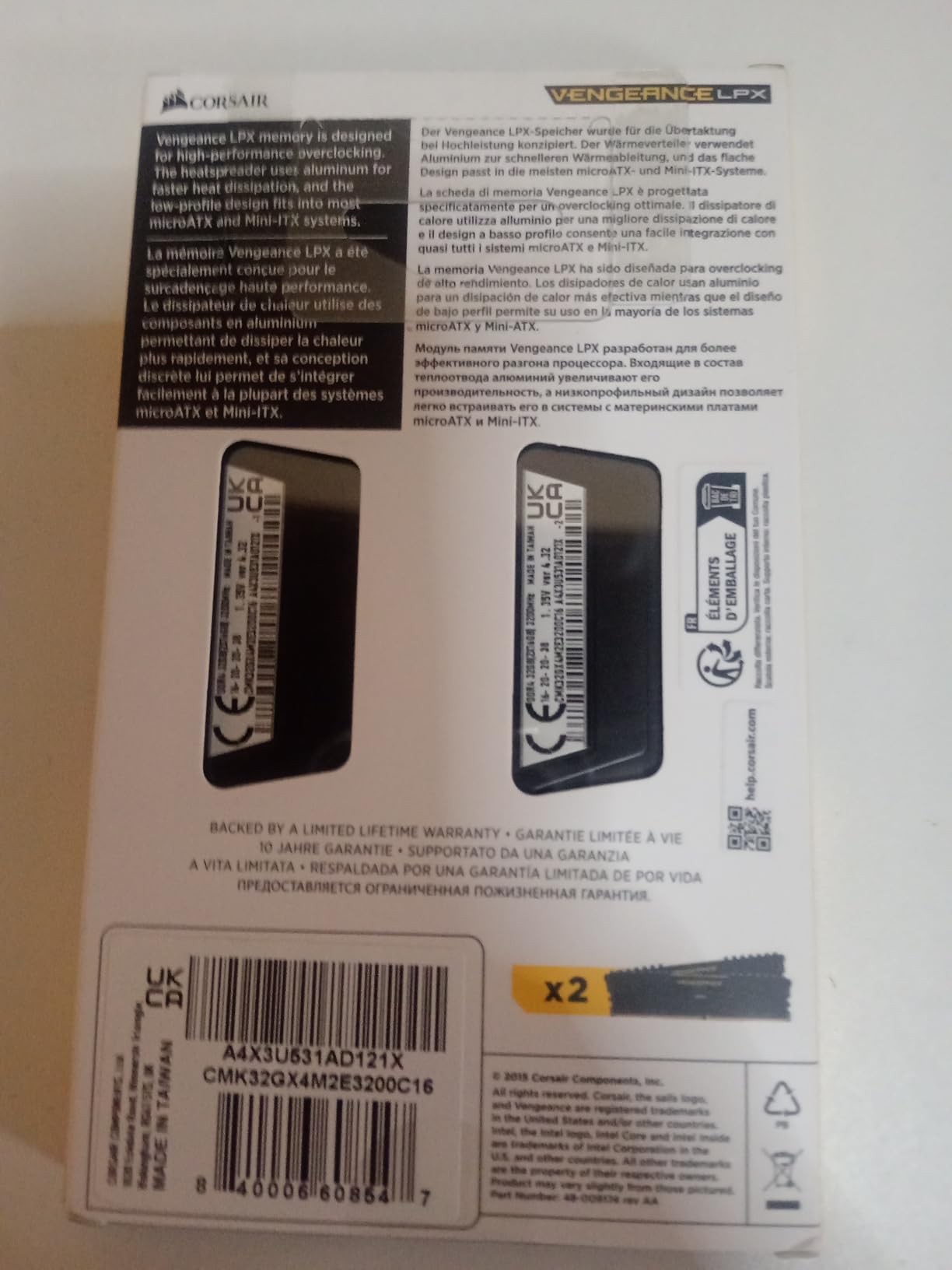
The 34mm heat spreader is the sleeper feature. It is short enough to clear the front fan of a large dual-tower air cooler, which matters in the compact edit benches people actually build. Corsair has never added lighting to this line, and we would not change that on a work machine.
One caveat worth stating plainly: the advertised speed only applies once you enable the XMP or EXPO profile in BIOS. Out of the box it runs at JEDEC defaults, which is slower. That is normal for every kit in this guide, but it is the number one reason buyers think a kit is faulty.
Who the Corsair Vengeance LPX suits
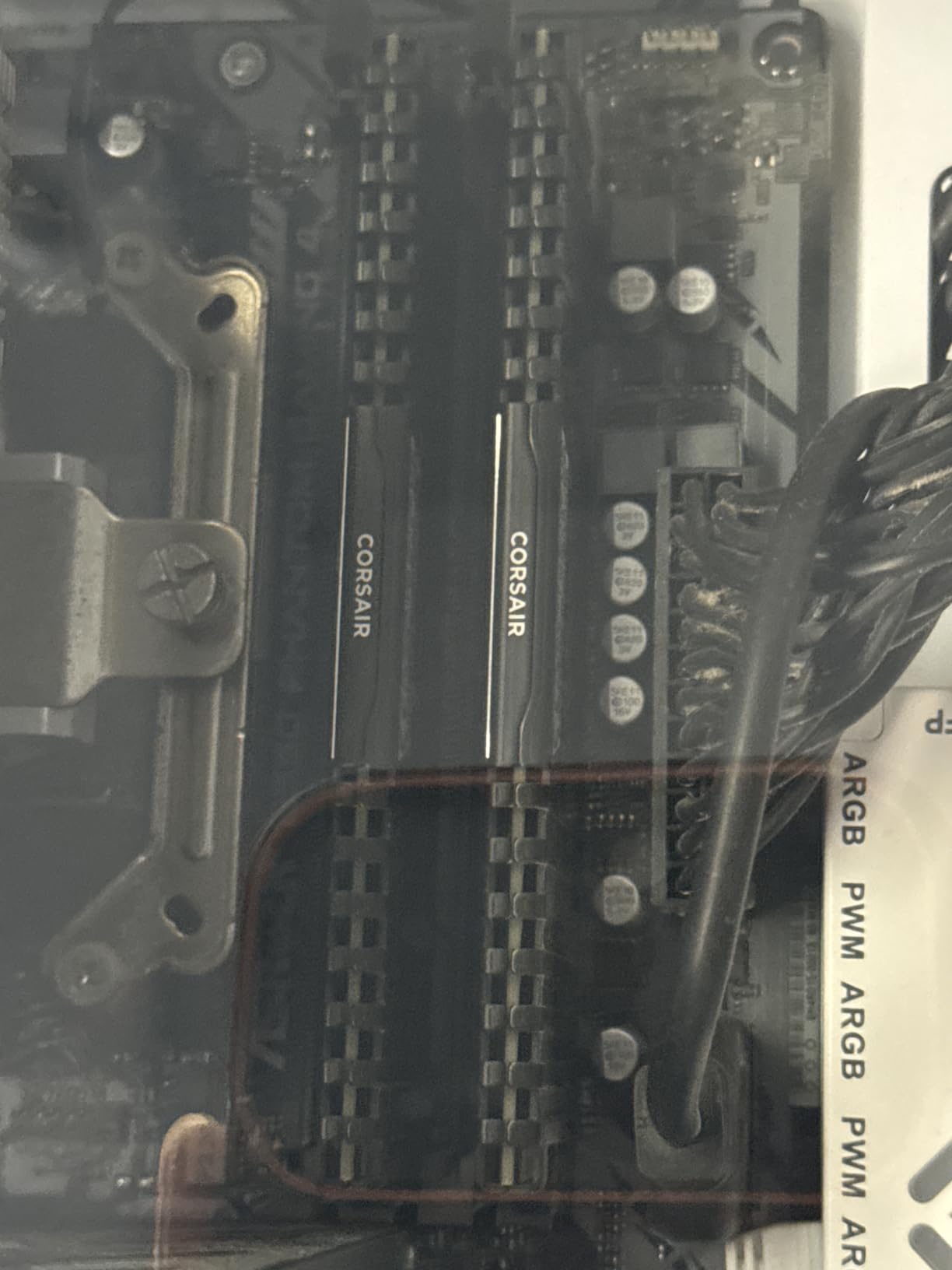
This is the pick for anyone on an AM4 or LGA-1700 DDR4 board, or on a compact workstation where a tall RGB heat spreader will not fit. If your CPU is a Ryzen 5000-series or a 12th-generation Core and you want a 32GB editing foundation that will not need replacing, the combination of capacity, review depth and clearance makes this the safest purchase in the roundup.
It is also the right kit for a machine that will sit in an office or studio where reliability beats appearance. A limited lifetime warranty and a decade-plus of DDR4 platform support behind it mean the install will not age badly.
Who should skip the Corsair Vengeance LPX
Skip it if you are buying a new AM5 or LGA-1851 board, because DDR4 will not fit a DDR5 slot. Also skip it if your workflow touches 6K or 8K footage with a Fusion or After Effects stack running, where the 32GB ceiling and the lower bandwidth ceiling of DDR4 will both start to show.
Buyers chasing RGB or manual timing headroom should look elsewhere. This kit is deliberately plain, and its 3200 MT/s ceiling leaves obvious performance on the table for a DDR5 platform that can run 6000 MT/s.
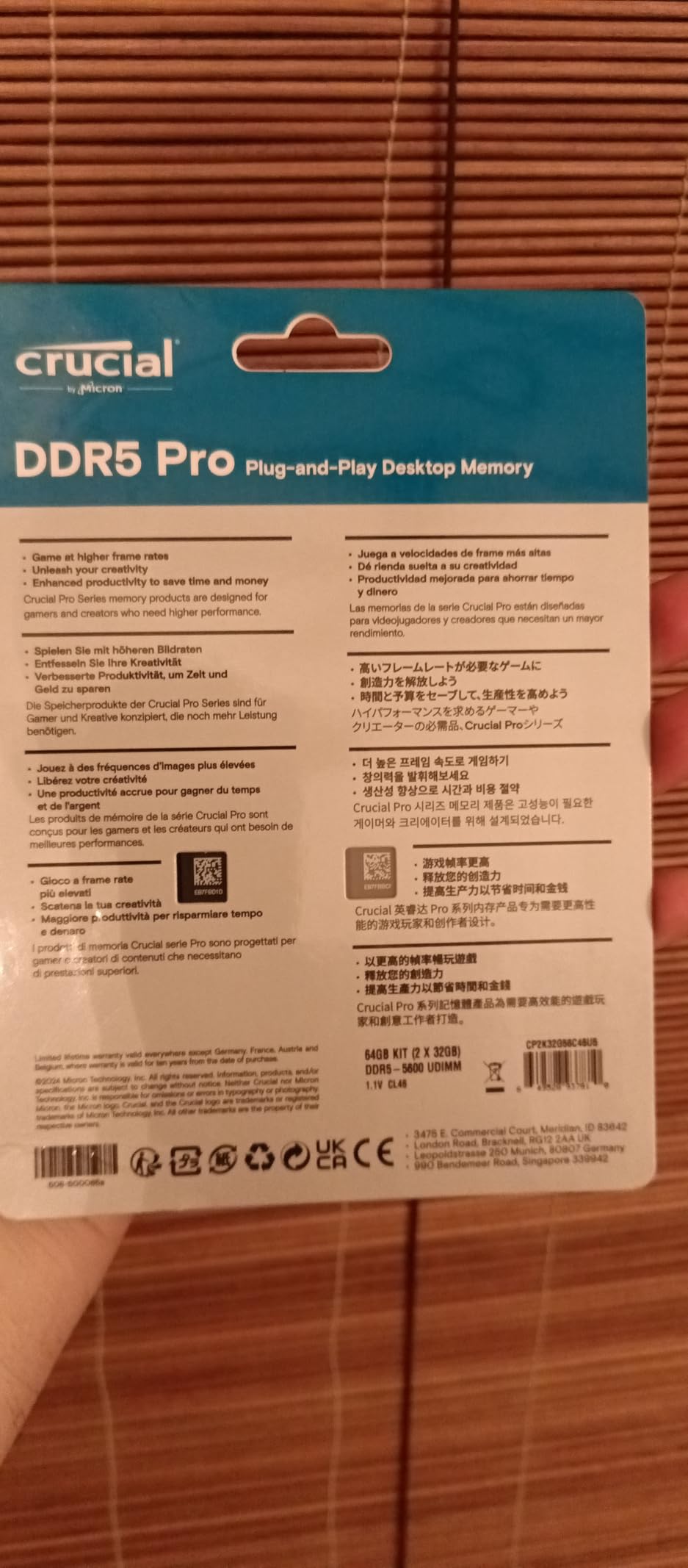
2. Crucial Pro 64GB DDR5 (2x32GB) – Best for 6K and 8K Workflows
Crucial Pro 64GB DDR5 RAM Kit (2x32GB), 5600MHz (or 5200MHz or 4800MHz) Desktop Memory UDIMM 288-pin, Compatible with 13th Gen Intel Core and AMD Ryzen 7000 – CP2K32G56C46U5
64GB 2x32GB DDR5
5600 MT/s CL46
1.1V
dual-rank non-ECC UDIMM
Pros
- 64GB in a matched two-module kit
- 1.1V operation on JEDEC profiles
- Downclock options at 5200 and 4800 MT/s
- Micron-manufactured DRAM
- Micron-built and verified in Dell Precision workstations
Cons
- CL46 latency is very loose next to CL30 DDR5 kits
- Boots at 4800 MT/s until a profile is enabled
- One buyer reported blue screens at 5600 MT/s on a B760M board
If your timeline genuinely needs to hold 6K or 8K media, effect stacks and multiple applications at once, this is the capacity answer. Sixty-four gigabytes across a matched 2x32GB pair gives you twice the headroom of a 32GB kit without the memory controller strain of populating four slots, and the 2Rx8 dual-rank configuration is a sensible layout for a 32GB module.
The unusual strength here is the 1.1V operating point. That is the lowest voltage of any kit in this roundup, and it means the modules run cool and draw less power, which suits an always-on edit bay. Owners running Dell Precision and Alienware Aurora workstations report the kit being recognised immediately with no tuning required.
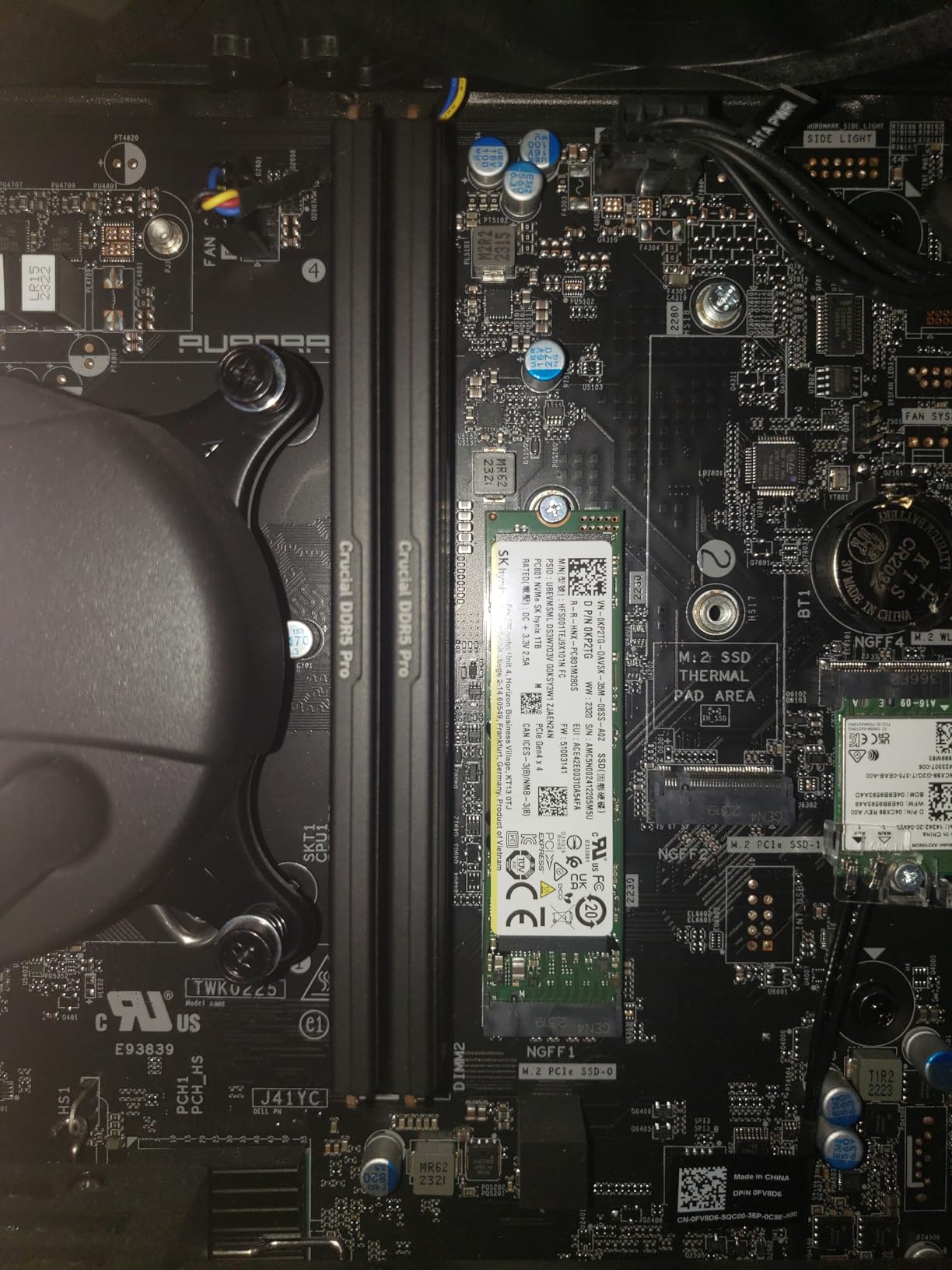
What you give up is latency. CL46 is loose by modern DDR5 standards, so once a project fits in memory, timeline scrubbing responsiveness will not feel as sharp as a CL30 kit. Users also report that it will sit at the 4800 MT/s JEDEC baseline until a profile is enabled, and one buyer pairing it with an ASUS Prime B760M-A and an i5-12600KF hit recurring blue screens at 5600 MT/s.
The module height and heatsink design are also worth checking against your CPU cooler, since a tight workstation case makes clearance a real constraint.
Who the Crucial Pro 64GB suits
Pick this for 6K and 8K editing, RAW-heavy pipelines, and Resolve users running Fusion graphs alongside an NLE. It is also the safest high-capacity option for OEM and workstation desktops, because the 1.1V JEDEC behaviour means it will boot and be recognised even on boards with modest memory controller support.
If you are building a studio machine that will serve several editors or run long unattended renders, 64GB that boots reliably is worth more than 32GB that needs tuning.
Who should skip the Crucial Pro 64GB
Skip it for 1080p or 4K work, where 32GB is plenty and this kit simply leaves performance unused. Also skip it if you are sensitive to latency, because CL46 is the loosest DDR5 timing here and it is the one number we would want improved before recommending it to a colourist who scrubs a timeline all day.
Buyers who want manual tuning headroom should know that Micron’s downclock options favour stability over overclocking. This is a kit to run at its profile, not to push past it.
3. Crucial Pro 32GB DDR5 6000 (2x16GB) – Most Versatile for Fast DDR5 Editing
Crucial Pro 32GB DDR5 RAM Kit (2x16GB),CL36 6000MHz, Overclocking Desktop Gaming Memory, Intel XMP 3.0 & AMD Expo Compatible, Black – CP2K16G60C36U5B
32GB 2x16GB DDR5
6000 MT/s CL36-38-38-80
1.35V
XMP 3.0 and EXPO
Pros
- 6000 MT/s with 36-38-38-80 timings
- XMP 3.0 and EXPO on the same kit
- Owners report smooth Premiere Pro rendering
- Heat spreaders handle sustained load
- Micron-backed with limited lifetime warranty
Cons
- One module reportedly failed after about five months
- May downclock to 5200 MT/s on weaker memory controllers
- Modules can be finicky about seating on first install
This is the fastest 32GB kit in the roundup, running 6000 MT/s at CL36-38-38-80 and 1.35V. On an AM5 board that 6000 MT/s figure is the practical ceiling for a two-DIMM kit, and on Intel it sits comfortably inside the range a 13th-generation Core memory controller will handle with the XMP 3.0 profile enabled.
Owners on AM5 and 13th-gen builds report that setup is clean, that the EXPO and XMP profiles apply without manual entry, and specifically that Premiere Pro rendering is smooth with no lag when multitasking. At 3,800-odd reviews averaging 4.8 stars, the volume of positive feedback here is meaningful rather than anecdotal.
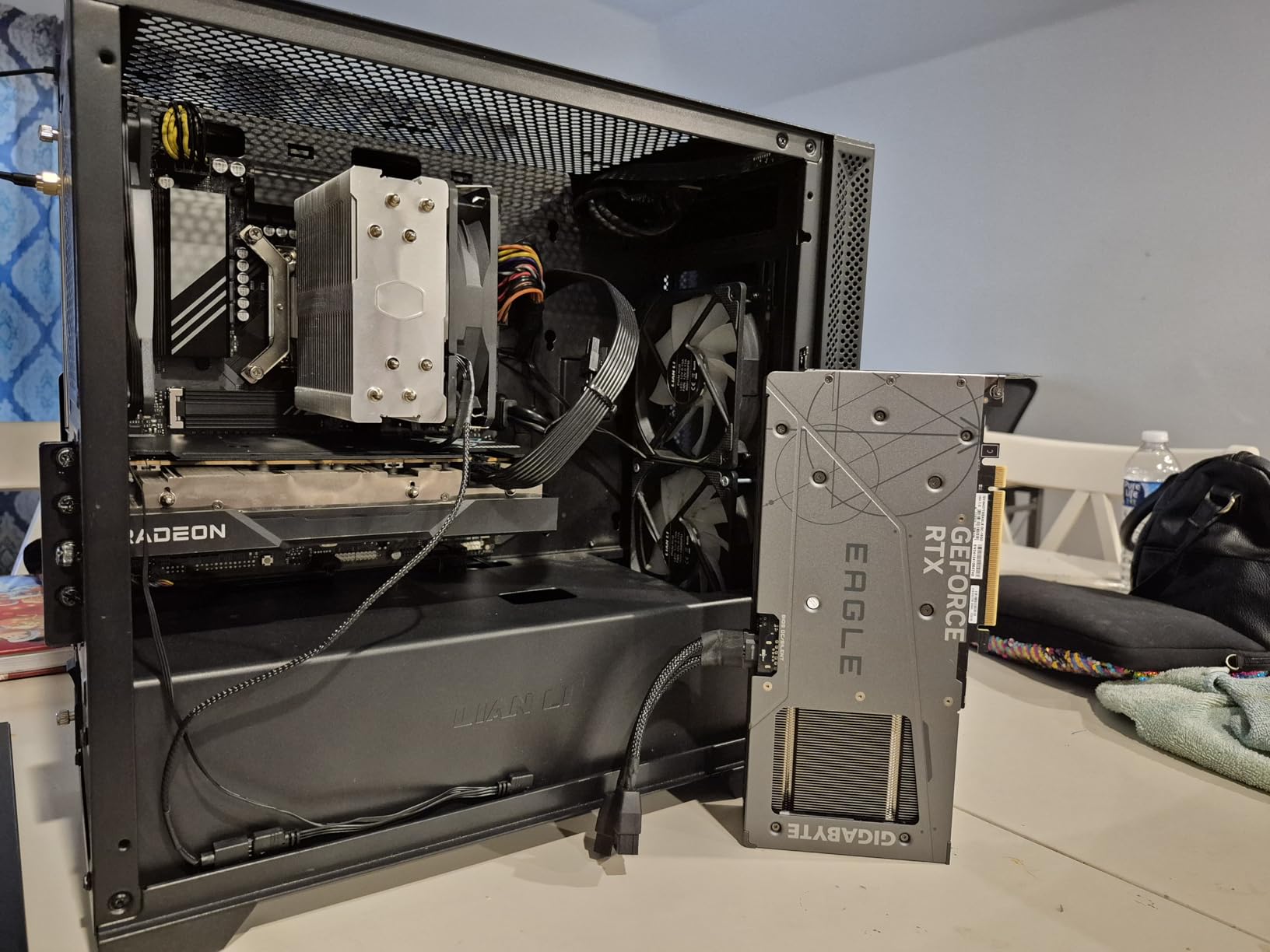
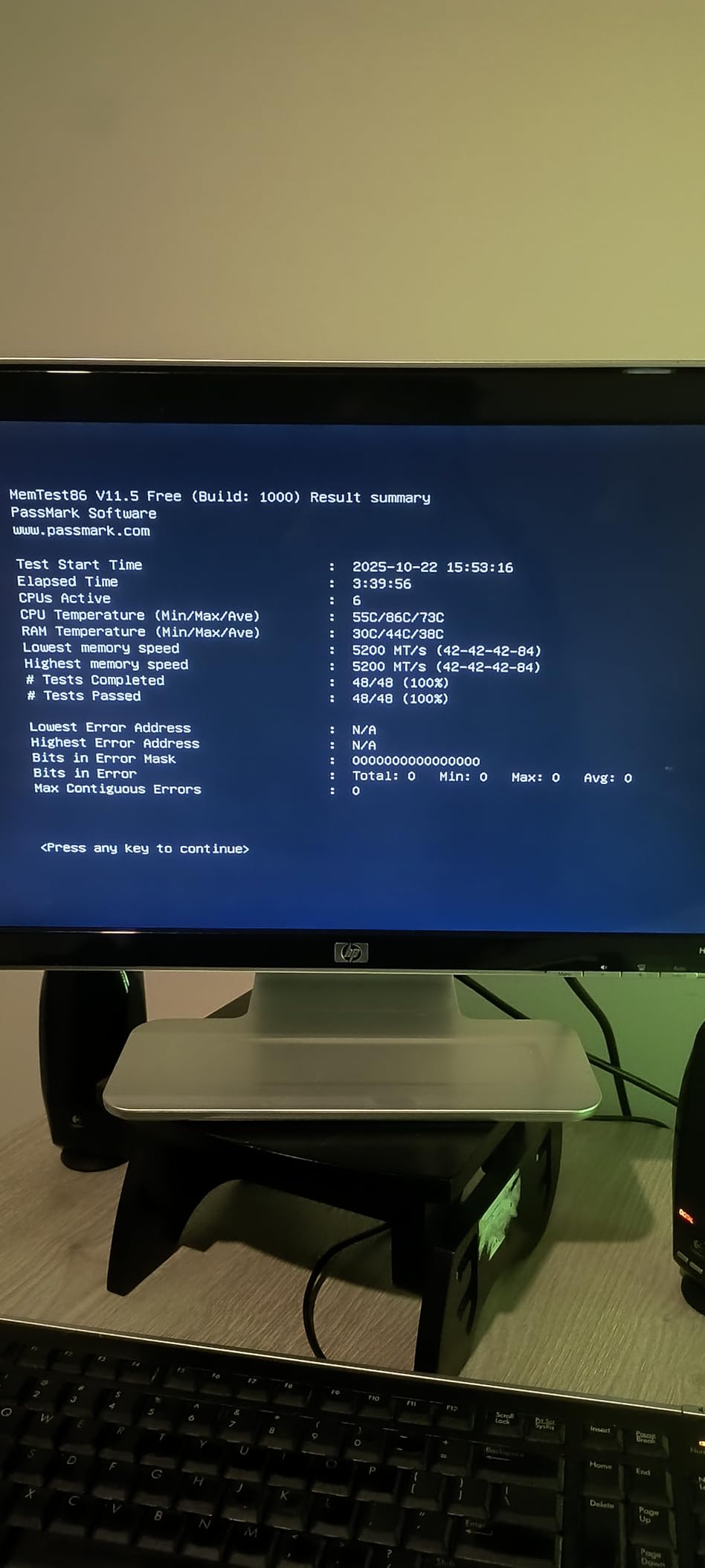
Two practical notes. First, the memory controller in your CPU matters more than the kit label: on boards with weaker controllers these modules can settle at 5200 MT/s instead of 6000. Second, the 32GB capacity is a genuine limit on very heavy 8K timelines with large effect stacks, so this is a 4K kit rather than an 8K one.
The negatives in the reviews are isolated but worth hearing. One buyer reported a single 16GB module failing after roughly five months without any overclocking, and a number of owners mention needing to reseat the kit on first install because the modules were not seated fully. Neither is a pattern, but both are reasons to test the full capacity immediately after building.
Who the Crucial Pro 32GB 6000 suits
This is our pick for a new 4K editing build on AM5 or a recent Intel board, particularly for editors who also want the machine to do duty as a general workstation. The combination of 6000 MT/s, tight-for-DDR5 CL36 timings and a 1.35V profile gives responsive timelines without the 1.40V draw some competing kits require.
It is also a good pairing with a discrete GPU doing the decode work, since the higher data rate keeps the timeline feeding frames to the GPU without stalls under heavy stack loads.
Who should skip the Crucial Pro 32GB 6000
Skip it if your work regularly reaches 6K or 8K with a Fusion or After Effects stack, since 32GB will be the binding constraint long before 6000 MT/s stops helping. Also skip it if you want RGB, because these modules are deliberately plain.
Buyers on first-generation AM5 boards should update the BIOS before assuming a problem: some boards will not recognise a 6000 MT/s profile until they have recent firmware.
4. Corsair Vengeance RGB 32GB DDR5 (2x16GB) – Best Value DDR5 Kit
CORSAIR Vengeance RGB DDR5 RAM 32GB (2x16GB) Up to 6000MHz CL30-36-36-76 1.40V AMD EXPO Intel XMP Desktop Computer Memory – Gray (CMH32GX5M2B6000Z30K)
32GB 2x16GB DDR5
6000 MT/s CL30-36-36-76
1.40V
ten-zone RGB
Pros
- 6000 MT/s CL30 keeps timelines responsive
- Ten addressable RGB zones per module
- Onboard voltage regulation through iCUE
- EXPO and XMP support for both platforms
Cons
- 1.40V runs hotter than 1.35V CL30 kits
- Tall RGB spreaders can foul large air coolers
- Lighting adds cost for little editing benefit
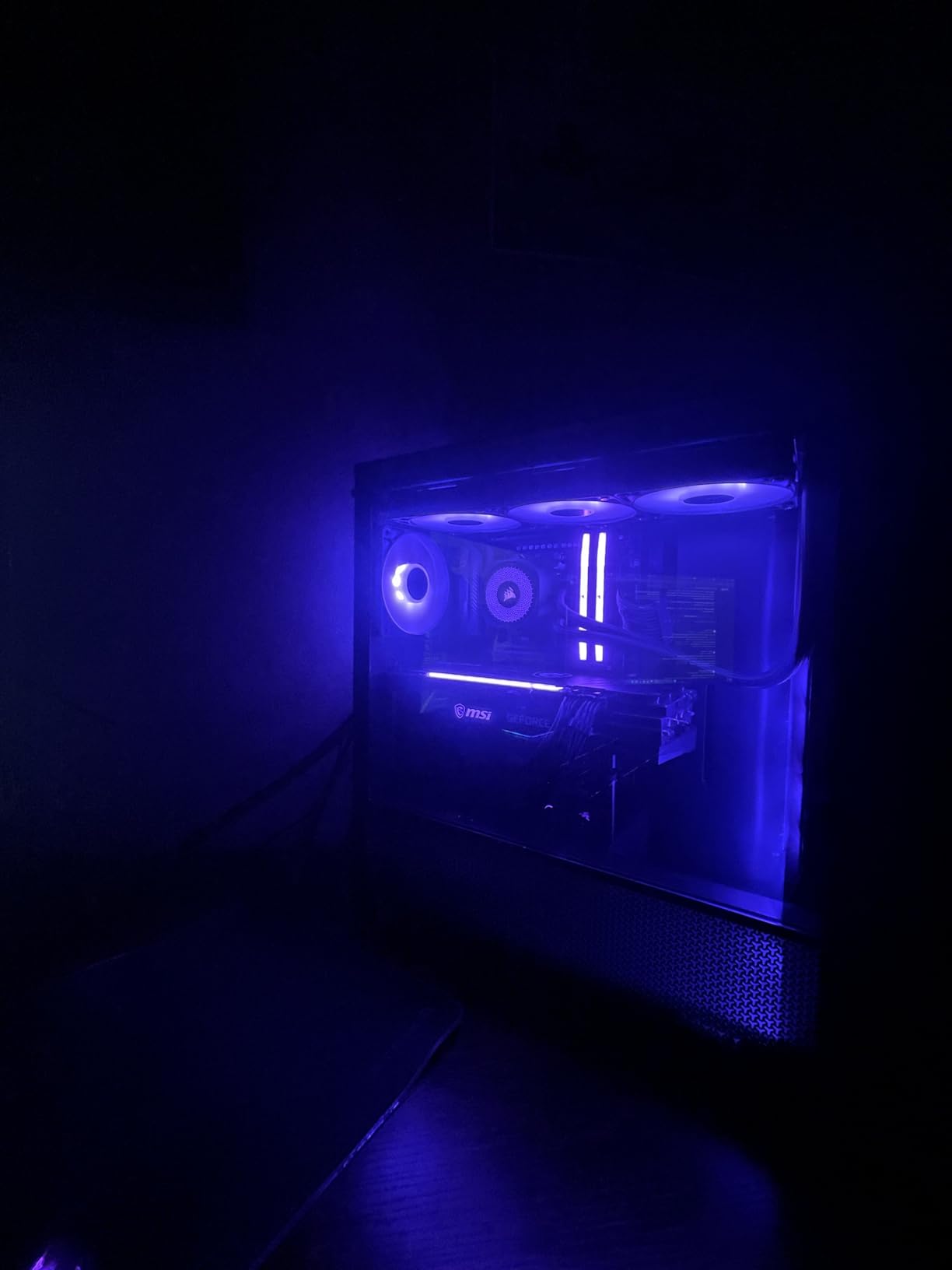
At 6000 MT/s with CL30-36-36-76 timings, this is the best value route into a fast 32GB DDR5 editing build, and it carries a larger review base than almost anything else in the guide. The ten individually addressable RGB LEDs per module inside a panoramic light bar look good in a glass-sided edit bench, and iCUE keeps the lighting in step with the rest of a Corsair build.
The more interesting feature for editors is onboard voltage regulation. It allows finer and more stable control of the memory voltage through iCUE software rather than relying on motherboard auto-regulation, which is genuinely useful if you plan to run long unattended renders in a warm room.
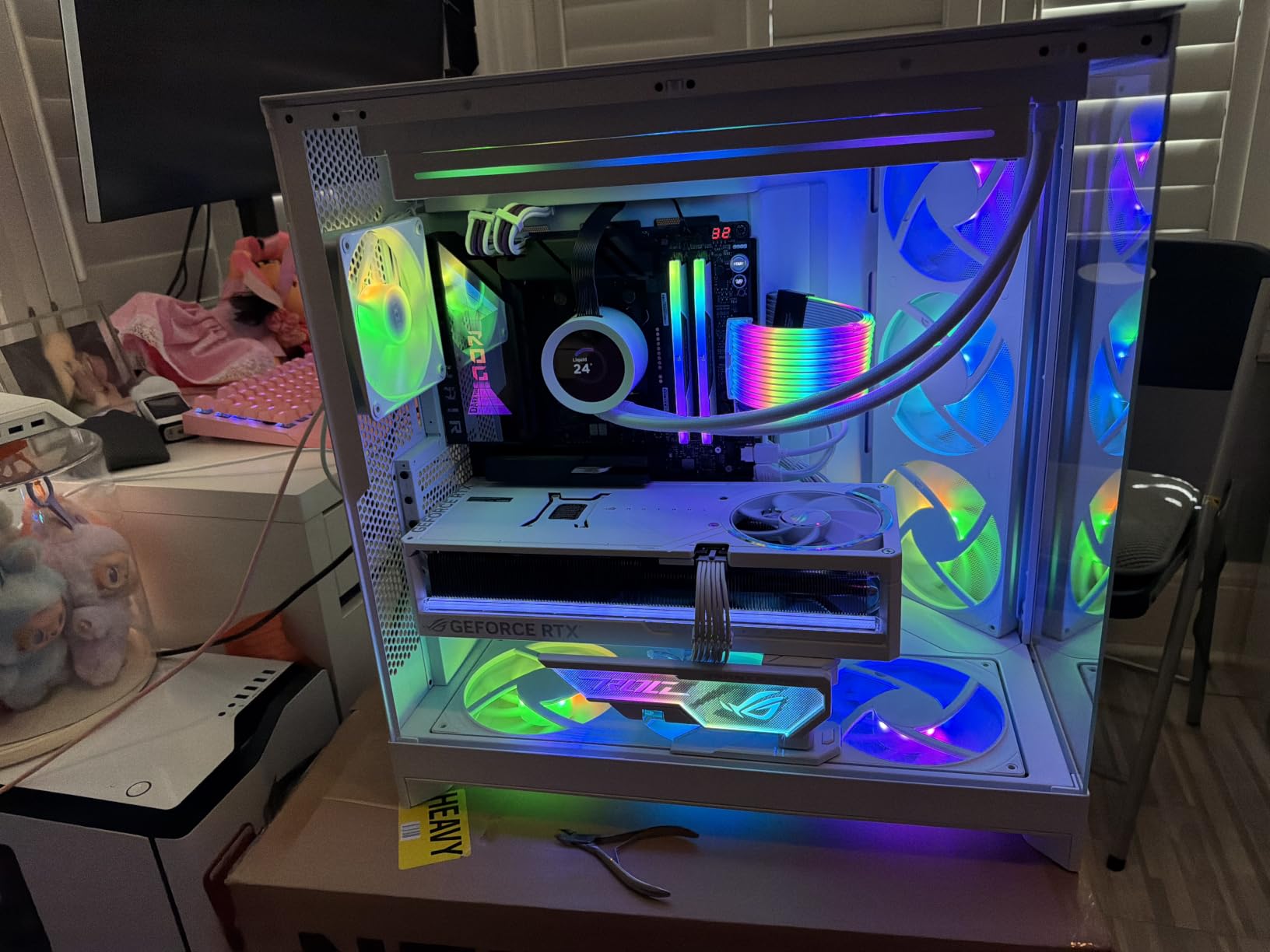
The two things to weigh are heat and height. At 1.40V this kit draws more power than the 1.35V CL30 alternatives, and the RGB heat spreader is tall enough to conflict with the front fan of a large dual-tower air cooler. If your build uses a big air cooler, measure before you commit.
There is also an honest question about whether the lighting earns its place. Against a non-RGB 6000 CL30 kit, the performance difference is minimal, and the money is arguably better spent on storage. But for a machine that doubles as a production suite, the aesthetic argument is a legitimate one.
Who the Corsair Vengeance RGB 32GB suits
It fits editors on AM5 or LGA-1700 who want a fast 32GB foundation and are building a machine that will be seen as well as used. The CL30 latency is the tightest in this roundup at 6000 MT/s, which keeps timeline scrubbing and effect previews crisp during long 4K sessions.
It is a good match for a creator who also edits with a colourist on a calibrated panel, where responsiveness during grade node work matters and the machine is typically on a desk in a lit room rather than hidden in a rack.
Who should skip the Corsair Vengeance RGB 32GB
Skip it in a compact case or with a large air cooler, because the tall RGB heat spreader is the single most common clearance problem we see. If you are chasing the lowest possible thermals, the 1.35V kits in this guide run cooler.
Also skip it if you plan to move past 4K. Thirty-two gigabytes is the ceiling here, and 6K or 8K work will outrun it regardless of how fast the memory is.
5. Corsair Vengeance 32GB DDR5 (2x16GB) – Best Low-Profile DDR5 Pick
CORSAIR Vengeance DDR5 32GB (2 x 16GB) Up to 6000MHz AMD Intel RAM
32GB 2x16GB DDR5
6000 MT/s CL30
1.4V
EXPO and XMP 3.0
Pros
- 6000 MT/s CL30 in a low-profile heat spreader
- Dual EXPO and XMP 3.0 profiles
- Low-profile design avoids cooler clearance issues
- Onboard voltage regulation
- 91% five-star share across reviews
Cons
- 1.4V operating voltage
- Rated speed needs a profile enabled in BIOS
- No RGB lighting
This is the kit to buy if you want 6000 MT/s CL30 without the height penalty of an RGB heat spreader. The low-profile design clears most large air coolers, which makes it the safer choice for compact edit benches and tower cases with restrictive cooler budgets.
It carries dual AMD EXPO and Intel XMP 3.0 profiles, so one kit covers both current platforms, and onboard voltage regulation gives you manual control if you want it. At 2,510 reviews with 91% five-star ratings, this is the highest five-star share of any Corsair kit in the guide, and owners consistently mention the low-profile 6000 CL30 specification as the reason they bought it.
Two caveats. The kit runs at 1.4V, which is higher than the 1.35V CL30 kits here and means slightly higher temperatures under sustained export load. And the rated speed, as with every XMP or EXPO kit, only applies once you enable the profile in BIOS; out of the box it runs at JEDEC defaults.
There is no RGB, which some buyers list as a drawback. For a production machine we think that is a feature rather than a problem.
Who the Corsair Vengeance 32GB DDR5 suits
It suits 4K editors building a compact workstation with a large air cooler, or anyone who wants the CL30 latency profile at 6000 MT/s and does not care about lighting. The dual profile support also makes it a good choice if you might move the same kit between an AMD and an Intel build.
It is a strong pairing with a dedicated GPU that handles decoding, since the higher data rate keeps the timeline supplied with frames under heavy stack loads.
Who should skip the Corsair Vengeance 32GB DDR5
Skip it if your workflow includes 6K or 8K footage with heavy effect stacks, where 32GB is the binding limit. Skip it if your build is in a thermally constrained small-form-factor case and you want the lowest possible memory temperature, since the 1.35V options run cooler.
Buyers who like to fine-tune timings manually may prefer a kit that ships with looser initial timings and more obvious overclocking headroom. This one is screened for reliability first.
6. G.Skill Flare X5 32GB DDR5 (2x16GB) – Best Non-RGB Workstation Pick
G.SKILL Flare X5 Series DDR5 RAM (AMD EXPO & Intel XMP 3.0) 32GB (2x16GB) Up to 6000MT/s* CL36-36-36-96 1.35V Desktop Computer Memory U-DIMM – Matte Black (F5-6000J3636F16GX2-FX5)
32GB 2x16GB DDR5
6000 MT/s CL36-36-36-96
1.35V
EXPO and XMP 3.0
Pros
- 6000 MT/s CL36 at 1.35V on EXPO
- No RGB suits a work-focused edit bench
- Includes a JEDEC default profile for safe fallback
- Validated across many AM5 and Intel 600 and 700-series boards
Cons
- CL36-36-36-96 is looser than CL30 kits
- New AM5 builds may need a BIOS update first
- Choosing XMP instead of EXPO on AMD limits the speed
The Flare X5 is the quiet, work-first option. There is no lighting, the finish is a plain matte black, and the 1.35V profile keeps it among the coolest-running 6000 MT/s kits in this guide. For an edit bench that lives in a rack or under a desk, that is exactly the right character.
Owners report stable 6000 MT/s operation once EXPO is enabled on Ryzen 5000 and 7000 boards, zero faults over months of use, and no thermal throttling. G.Skill also validates the kit across a long list of AM5 and Intel 600- and 700-series boards, and the included JEDEC default profile means the kit falls back to a safe speed if a profile is not enabled.

There is a specific configuration trap here. On an AMD board, selecting XMP instead of EXPO will leave the kit running at a much lower speed. Match the profile to the platform, not to habit.
The CL36-36-36-96 timing string is looser than the CL30 kits, which costs some effective latency, and a small number of buyers have reported needing a BIOS update on new AM5 builds. G.Skill also warns explicitly against mixing this kit with another memory set, which is good practice for every build here.
Who the G.Skill Flare X5 32GB suits
It is a good fit for freelance editors and small studio operators who want a reliable 32GB DDR5 foundation at 6000 MT/s, run long sessions, and do not want lighting in a machine that sits in a working room. The 1.35V profile also makes it a sensible choice in a case with limited airflow.
If you are upgrading an existing AM4-era machine to a new AM5 board, the board-level validation list and the safe JEDEC fallback make this a low-risk install.
Who should skip the G.Skill Flare X5 32GB
Skip it if latency is your priority and you can accept lighting or a taller module, because a CL30 kit at the same 6000 MT/s will feel tighter under sustained timeline work. Skip it for 6K or 8K production, where the 32GB ceiling is the real problem.
Buyers with a brand-new AM5 board should confirm BIOS readiness before assembly. And if you are the type who wants to tune timings by hand, this kit is screened for stability rather than headroom.
7. Patriot Viper Venom 32GB DDR5 (2x16GB) – Best Low-Heat 1.35V Pick
Patriot Viper Venom DDR5 RAM 32GB (2X16GB) 6000MHz CL30 Desktop Memory
32GB 2x16GB DDR5
6000 MHz CL30-40-40-76
1.35V
XMP 3.0 and EXPO
Pros
- 6000 MT/s at CL30 running on 1.35V
- XMP 3.0 and EXPO on one kit
- Low-profile UDIMM clears most air coolers
- Tested across current DDR5 platforms
- Limited lifetime warranty
Cons
- Secondary timings of 40-40-76 are loose
- Lowest average rating in the roundup at 4.6 stars
- Fewer colour and capacity options than larger brands
Patriot’s Viper Venom delivers the same headline specification as the pricier 6000 CL30 kits: 6000 MHz at CL30-40-40-76 running on just 1.35V, with Intel XMP 3.0 and AMD EXPO support on the same kit. For an edit bench that runs long exports in a warm room, the low voltage is the point. Less power means less heat, and less heat means more stable sustained throughput.
Owners cite the specification-to-value combination and reliable EXPO and XMP behaviour as the main reasons for the purchase. The low-profile UDIMM design also avoids most large-cooler clearance problems, and the kit carries a limited lifetime warranty.
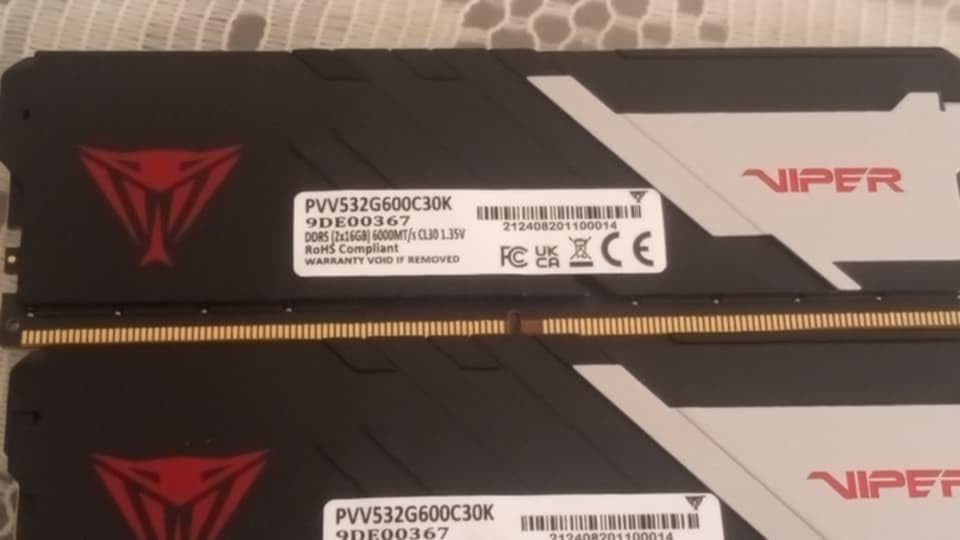
The honest drawback is the rating. At 4.6 stars with a 5% one-star share, this is the lowest average in the roundup, and the reviews reflect occasional stability complaints. The secondary timings of 40-40-76 are also looser than the 36-36-76 kits, so while the CAS latency is tight, the overall profile is softer.
SKU choice is narrower too, with fewer colour and capacity options than the larger memory brands. If you need a specific capacity in a specific colour, the choices thin out quickly.
Who the Patriot Viper Venom 32GB suits
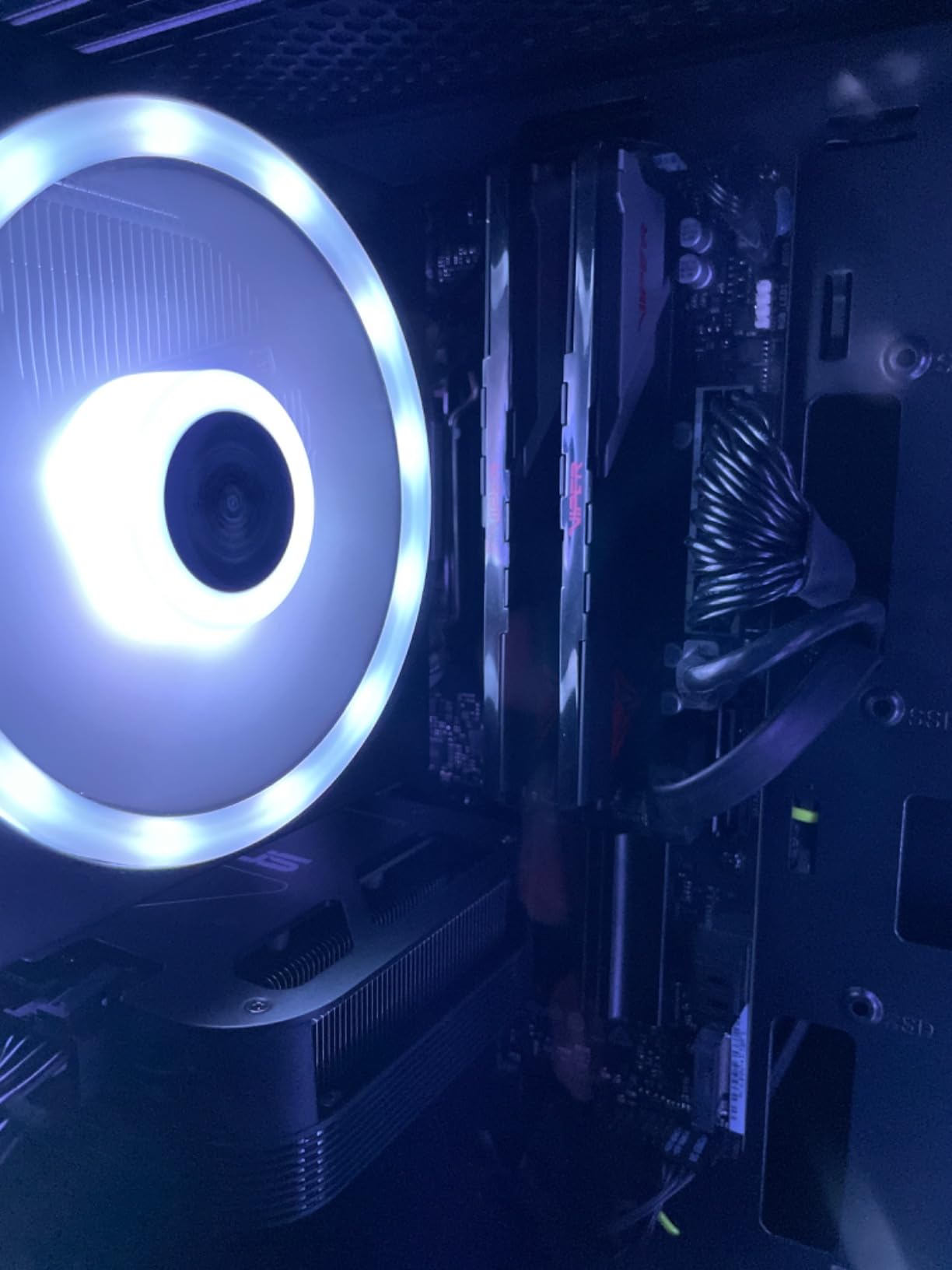
It suits 4K editors on AM5 or LGA-1700 who want a low-voltage 32GB kit and care more about thermals than about lighting. The 1.35V profile is genuinely useful in a workstation that runs unattended through long render batches, where memory temperature is a long-term reliability question.
The dual profile support also makes it a flexible choice if your build platform changes, and the low-profile modules will not fight a big air cooler.
Who should skip the Patriot Viper Venom 32GB
Skip it if you want the tightest possible timings, because the loose secondary timings and the 4.6-star average make the CL30 kits with stronger review records a safer long-term bet. Skip it if you need capacity options beyond 32GB in a particular colour or form factor.
Buyers running very memory-intensive 8K work should also look past it, since the 32GB limit applies here as it does to every other 32GB kit in the guide.
8. Crucial 64GB DDR4 (2x32GB) – Best No-Tuning 64GB DDR4 Pick
Crucial 64GB DDR4 RAM Kit (2x32GB), 3200MHz (PC4-25600) CL22 Desktop Memory, UDIMM 288-Pin, Downclockable to 2933/2666MHz, Compatible with Intel and AMD Ryzen – CT2K32G4DFD832A
64GB 2x32GB DDR4
3200 MT/s CL22
1.2V
dual-rank non-ECC UDIMM
Pros
- 64GB of headroom at a low 1.2V
- Runs at JEDEC defaults with no BIOS tuning
- Downclock options at 2933 and 2666 MT/s
- Stable in Lenovo and Dell workstations
- Crucial System Scanner confirms compatibility
Cons
- CL22 latency hurts timeline scrubbing
- 3200 MT/s is the lowest bandwidth ceiling here
- DDR4 only so it cannot fit a DDR5 board
This kit answers a specific question: what if you want 64GB of editing headroom but do not want to touch a BIOS? It runs at JEDEC defaults straight after installation, and Crucial lists 3200, 2933 and 2666 MT/s as supported operating points depending on the CPU. Owners report systems recognising the full 64GB immediately and handling heavy multitasking smoothly.
The 1.2V operation and 2Rx8 rank configuration are both sensible for a workstation, and reviewers specifically call out stability in Lenovo and Dell desktops. Crucial also provides a System Scanner tool that confirms compatibility for a specific machine before you buy, which removes the guesswork that causes so many returns.
The trade is latency. CL22 is loose, and in an editing context loose latency shows up most clearly as timeline scrubbing that feels slightly less immediate than a CL16 kit. The 3200 MT/s ceiling is also the lowest here, so exports remain bound by CPU and GPU work rather than memory throughput.
Who the Crucial 64GB DDR4 suits
It suits editors with an existing DDR4 workstation who want to double their capacity without any risk of memory instability. Corporate and studio machines bought as Dell Precision or Lenovo ThinkStation units often ship with exactly this kind of memory, and a matched 2x32GB pair is the least disruptive upgrade available.
If your work is 1080p or 4K but you run many applications at once, or you edit while streaming and hosting calls, the 64GB headroom removes the spill-to-disk behaviour that causes the worst playback stutters.
Who should skip the Crucial 64GB DDR4
Skip it on any new DDR5 build, because the modules physically will not fit. Also skip it if timeline responsiveness is the thing you notice most, because CL22 is the loosest latency here and the difference is noticeable on colour-grading work where you scrub constantly.
Buyers planning to move to 6K or 8K should note that while 64GB is enough capacity, the bandwidth ceiling means they would be leaving performance on the table compared with a DDR5 platform.
9. Kingston Fury Beast 32GB DDR5 (2x16GB) – Best Cool-Running RGB Pick
Kingston Fury Beast RGB 32GB 5200MT/s DDR5 CL40 DIMM Desktop Memory (Kit of 2) | Intel XMP 3.0 | Infrared Sync Technology | Overclocking Stability | KF552C40BBAK2-32
32GB kit of 2 DDR5
5200 MT/s CL40
1.25V
XMP 3.0 with RGB
Pros
- 5200 MT/s at a low 1.25V draw
- Infrared Sync keeps RGB lighting matched across modules
- XMP 3.0 applies speed without manual entry
- Owners report stable multi-app performance on B760 boards
- Lifetime warranty
Cons
- CL40 is the loosest DDR5 latency here
- 5200 MT/s trails the 6000 MT/s norm
- Intel XMP only on this variant with EXPO sold separately
At 1.25V this is the second-lowest voltage in the guide, and that is the reason to consider it for a machine that is switched on all day. The 5200 MT/s figure is a 5200 MT/s figure, though, which is below the 6000 MT/s norm most DDR5 kits now reach, and CL40 is the loosest DDR5 latency in the roundup.
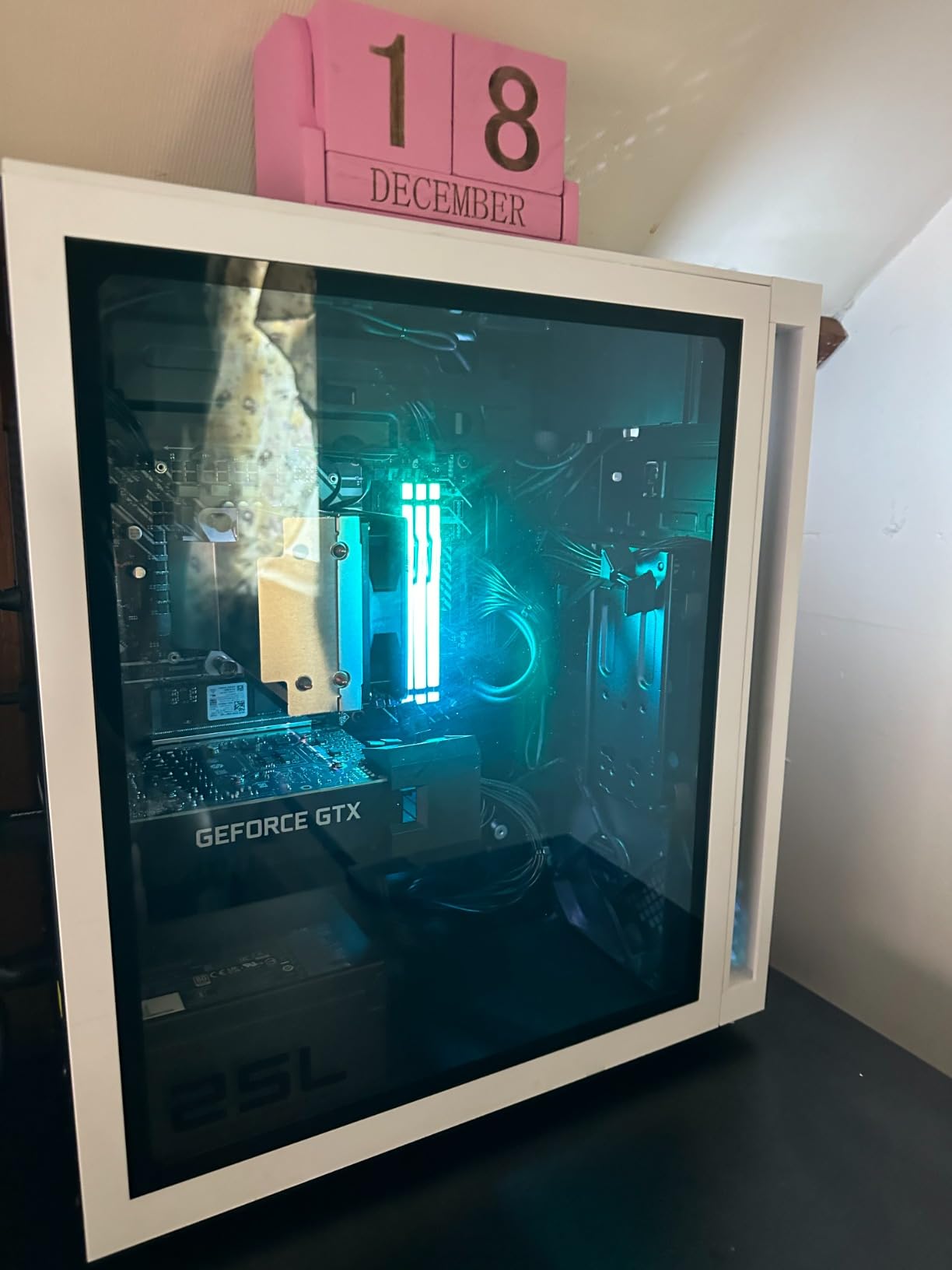
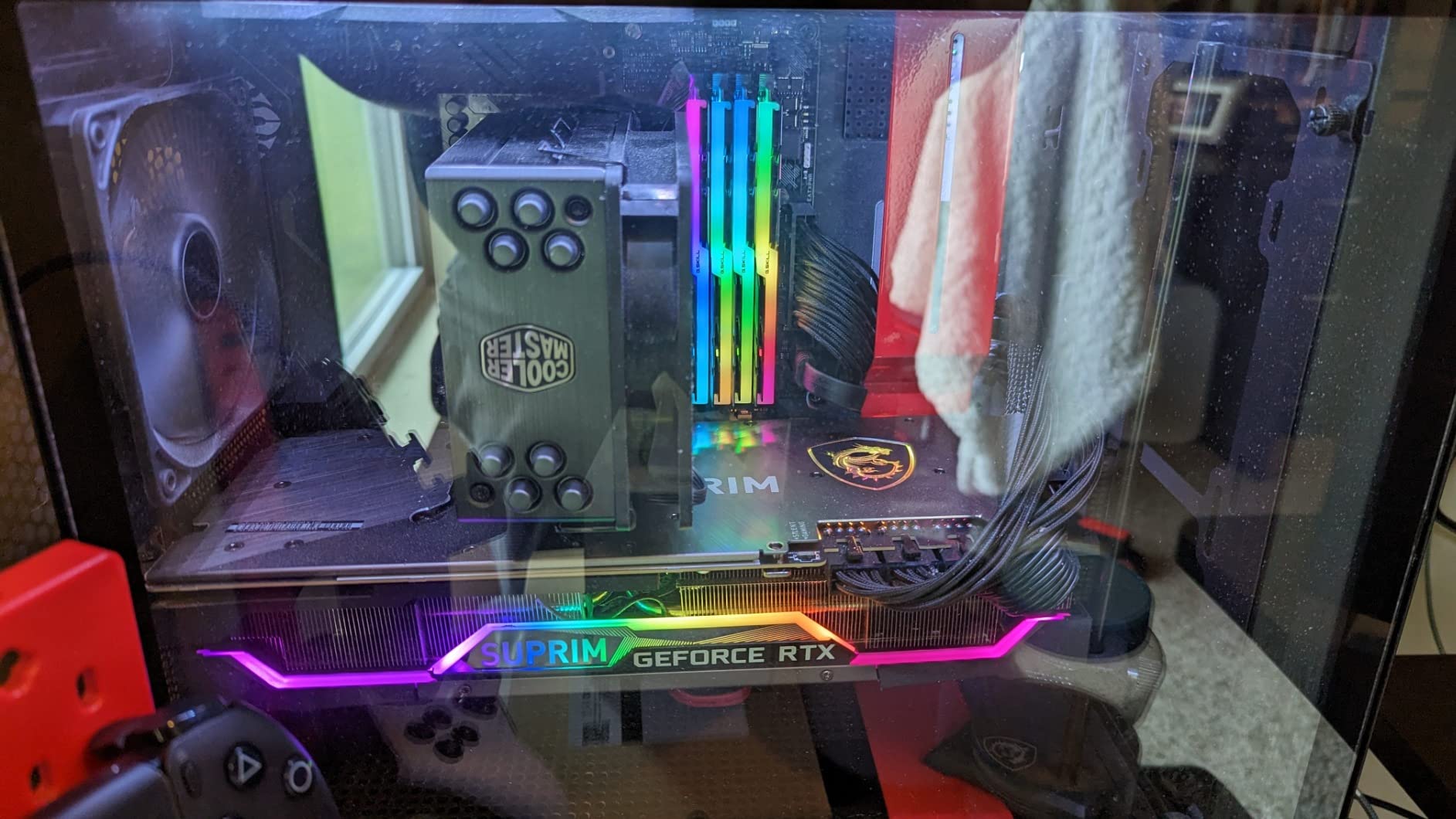
What Kingston does well is consistency and lighting. The patented Infrared Sync technology keeps the RGB modules matched without extra cables, the new heat spreader design handles the lower power draw easily, and the XMP 3.0 profile applies 5200 MT/s without manual timing entry. Owners report stable behaviour with games and multiple applications running on B760-class boards.
Two things to check before buying. This specific variant is Intel XMP only, with the AMD EXPO version sold as a separate kit, so AMD builders need the other SKU. And at 244 reviews with a 78% five-star share, this has the smallest and the weakest review base in the roundup, which makes it the pick we would want to benchmark ourselves before committing to a full project machine.
The looser timings will be felt most in timeline scrubbing under heavy stack loads. For a colourist scrubbing a graded 4K timeline all day, a CL30 kit is a better tool.
Who the Kingston Fury Beast 32GB suits
It suits editors building a display-case system on an Intel board who want lighting that stays in sync and the lowest possible power draw for a 32GB kit. If your machine is in a quiet room and thermals matter more than raw timeline latency, the 1.25V profile is a genuine advantage.
It is also a reasonable choice for a secondary machine that handles 1080p and 4K delivery work rather than 6K or 8K mastering.
Who should skip the Kingston Fury Beast 32GB
Skip it if you are on AMD unless you deliberately buy the EXPO variant, and skip it if you want the most responsive timeline possible, because CL40 and 5200 MT/s is the softest DDR5 profile in this guide.
Given the small review base, we would also be cautious about making it the only memory in a machine that has to render unattended overnight without a fallback plan.
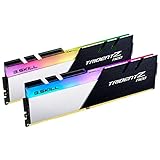
10. G.Skill Trident Z Neo 64GB DDR4 (2x32GB) – Best Low-Latency 64GB DDR4 Pick
G.SKILL Trident Z Neo Series DDR4 RAM (XMP) 64GB (2x32GB) Up to 3200MT/s* CL16-18-18-38 1.35V Intel AMD Desktop Computer Memory U-DIMM (F4-3200C16D-64GTZN)
64GB 2x32GB DDR4
3200 MT/s CL16-18-18-38
1.35V
Intel XMP
Pros
- Lowest-latency 64GB DDR4 option here
- One owner reached 3466 MT/s with tight timings
- Trident Z Neo RGB heat spreader
- Easy drop-in upgrade from 32GB on AM4
- Limited lifetime manufacturer warranty
Cons
- Intel XMP only so AMD users may stay on JEDEC speeds
- Smallest review base at 177
- DDR4 only so it cannot fit a DDR5 board
This is the 64GB option for editors who care about latency. CL16-18-18-38 at 3200 MT/s is the tightest timing string among the 64GB kits in this guide, and the dual-rank 32GB modules stack well. One owner reported reaching 3466 MT/s with tight timings and very little extra voltage, which tells you there is genuine headroom underneath the XMP profile.
Owners also describe the upgrade path as painless, taking a 32GB AM4 machine to 64GB with no drama, and the Trident Z Neo heat spreader carries RGB for a display-case edit box. At 1.35V and with a limited lifetime manufacturer warranty, it is a well-made kit.
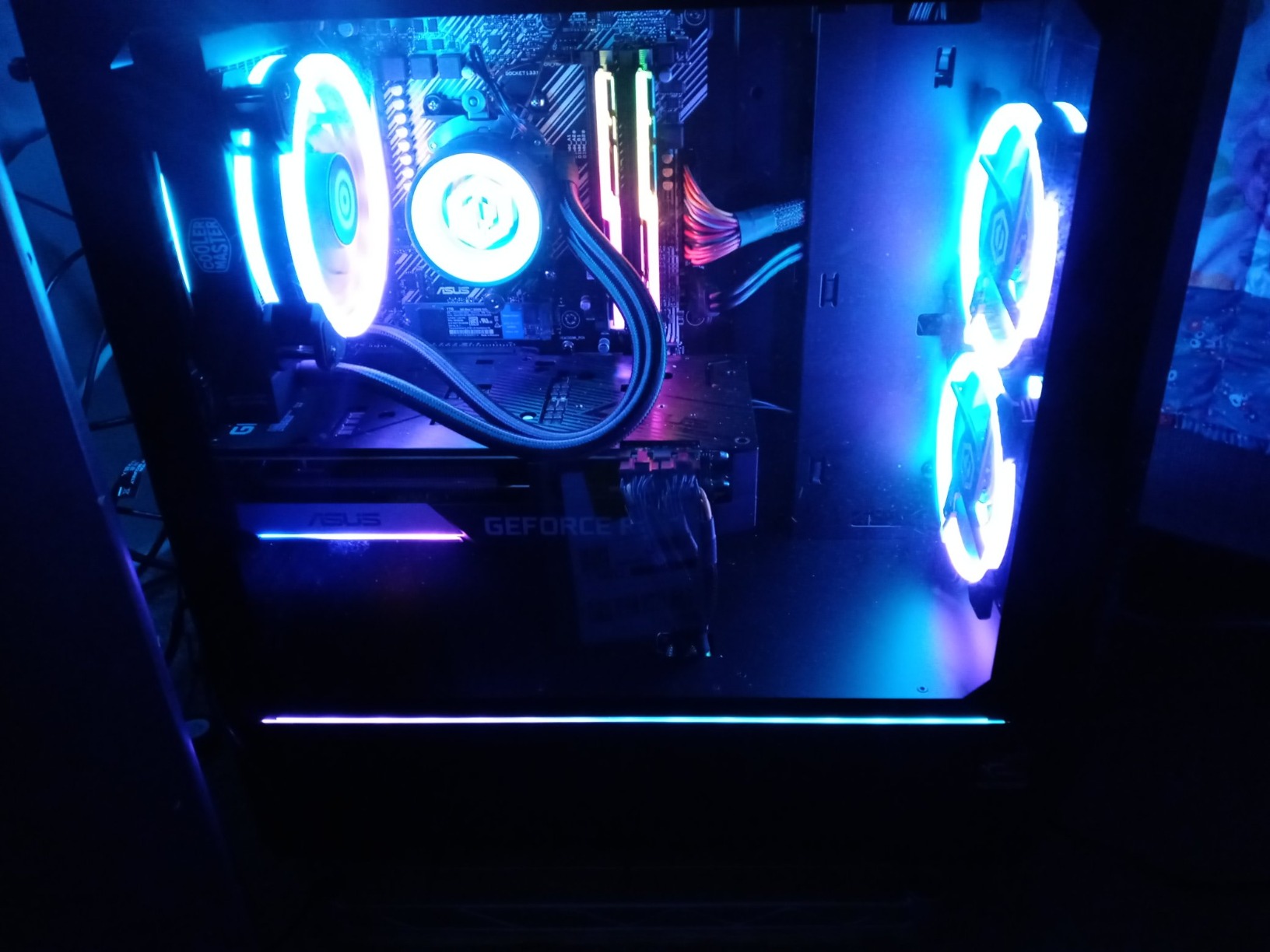
Two practical limits. The kit ships with an Intel XMP profile only, so AMD users may find themselves limited to JEDEC speeds unless the board reads the profile. And one buyer received a kit with a module that failed intermittently, which is a reminder to test full capacity as soon as it is installed.
With 177 reviews, this has the smallest sample in the roundup. The rating is a healthy 4.7 stars with 88% five-star ratings, but we would be less comfortable recommending it on that evidence alone than the kits with tens of thousands of reviews behind them.
Who the G.Skill Trident Z Neo 64GB suits
It suits colourists and editors on a DDR4 platform who want maximum capacity without accepting the loose CL22 latency of the budget 64GB option. If your day involves a lot of scrubbing and preview playback rather than long unattended batches, the tighter timings make the working experience noticeably better.
It is also a good match for an AM4 build that already has 32GB installed, since it is a straightforward matched-pair upgrade rather than a platform change.
Who should skip the G.Skill Trident Z Neo 64GB
Skip it if you are building a new DDR5 platform, because it will not fit. Skip it if you are on AMD and cannot confirm your board reads Intel XMP profiles, since falling back to JEDEC would undo the main advantage.
Buyers who prioritise a large evidence base over latency should choose one of the kits in this guide with thousands of reviews, and anyone planning to move to 6K or 8K in the next two years should think about a DDR5 platform instead.
DDR5 vs DDR4 for Video Editing: Check Your Motherboard First
DDR4 and DDR5 are not interchangeable, and this is the compatibility question that causes more returns than any other in this category. A DDR5 module will not physically fit a DDR4 slot, and a DDR4 module will not fit a DDR5 slot. The notch position differs, and no amount of forcing will change that.
Beyond fit, DDR5 offers higher data rates, larger per-module capacity options and lower voltage at higher speeds. For editing, the practical difference is modest. The community view on r/buildapc is that capacity beats speed, and a 32GB DDR4 kit at 3200 MT/s will run a 4K timeline about as smoothly as a 32GB DDR5 kit at 6000 MT/s in most real workflows.
Where DDR5 pulls ahead is when you want capacity per slot. Two 32GB DDR5 modules give you 64GB without populating four slots, which keeps memory controller load low. It is also the only route to 96GB and 128GB consumer kits.
If you are upgrading an older machine, DDR4 remains completely adequate for 1080p and 4K editing and can be the better value on an AM4 or LGA-1700 platform. If you are building new, DDR5 is the only sensible choice. Either way, the 34mm low-profile kits in this roundup are the safest bet for clearance.
RAM vs GPU VRAM: Where Your Editing Budget Should Go
Editors consistently get this trade-off wrong, so it is worth stating directly. For 4K editing, the GPU does the codec decoding, the colour science and the effects rendering. System RAM decides whether your project fits in memory at all. Neither replaces the other, but when a build is over budget, the graphics card is usually the better place to spend.
Blackmagic Design forum consensus is instructive here: a 32GB system paired with a 16GB GPU is a better-balanced machine than 64GB with a weak GPU. The same logic applies on the memory side. Moving from 32GB to 64GB when your project already fits in 32GB buys you very little, while moving from an entry-level card to a stronger one changes playback and export behaviour immediately.
The exception is heavy Resolve and Fusion work, or RAW and 8K timelines, where the system genuinely runs out of memory and spills to storage. There, capacity is the real bottleneck and no GPU upgrade will compensate.
If you are still balancing the rest of the build, our picks for the best 4K video editing graphics cards and the best RAID storage for video editing cover the other two parts of the equation. Storage matters more than most buyers expect, because preview rendering and cache writes are what make an under-specced machine feel slow.
How to Check a RAM Kit Will Work With Your PC
Before you buy any kit in this guide, run through these six checks. They take five minutes and prevent nearly every memory complaint we see.
Confirm the memory generation. DDR4 or DDR5. Check the motherboard model, not the CPU alone.
Check the QVL or validated memory list. G.Skill publishes one for every kit, and it is the fastest way to confirm your exact board is supported at the rated speed.
Decide between XMP and EXPO. XMP is the Intel profile, EXPO is the AMD one. Kits supporting both are listed as such above. Choosing the wrong profile on AMD can leave the kit running far below its rated speed.
Count your DIMM slots. Two modules in a matched kit is the configuration we recommend everywhere in this guide. Four modules reduce the maximum achievable speed on most platforms and stress the memory controller harder.
Measure your cooler clearance. RGB heat spreaders on the Corsair Vengeance RGB and G.Skill Trident Z Neo lines are tall. The 34mm Corsair Vengeance LPX is the safest option for large dual-tower air coolers.
Update the BIOS first on a new board. Several AM5 boards will not offer a 6000 MT/s profile until they have recent firmware.
One more check that catches people out: do not mix memory kits from different brands or different matched sets. A kit is tested as a set, and mixing sets is the single most common cause of memory instability and failed boot attempts.
RAM Jargon Buster: MT/s, CAS, XMP, EXPO and Dual-Channel
MT/s versus MHz. DRAM vendors use megatransfers per second because a DDR module transfers twice per clock cycle. A kit labelled 6000 MT/s is running at an underlying 3000 MHz clock and moving 6000 million transfers each second.
CAS latency and the timing string. CAS latency is the number of clock cycles the memory waits before responding, and lower is better. A string like CL30-36-36-76 lists the primary CAS latency followed by three secondary timings that govern other access types. Comparing only the first number hides meaningful differences between kits.
XMP versus EXPO. Both are one-click profiles that tell the BIOS to apply a set of memory settings above the JEDEC default. Intel boards use XMP, AMD boards use EXPO, and several kits here ship both. Without enabling a profile, memory runs at JEDEC baseline speed, which is why new kits feel slow until you enter BIOS.
UDIMM, RDIMM and SO-DIMM. Unbuffered DIMMs are what every editing desktop needs. Registered DIMMs are for server platforms and are not interchangeable with consumer boards. SO-DIMMs are the smaller laptop modules. Every kit in this guide is a 288-pin UDIMM, and the notebook form factor simply does not apply here.
Two DIMMs versus four. A matched 2x16GB or 2x32GB pair is the right answer for an editing workstation. Four smaller modules rarely reach the same speed, add more strain on the memory controller, and give you no upgrade path.
DDR4 versus DDR5 for editing. DDR4 is slower and lower capacity per module. For 1080p and 4K editing it is entirely adequate, and it can be the better value on an older platform.
Apple Silicon memory. Macs with Apple Silicon use unified memory, which cannot be upgraded after purchase. The capacity you choose at the point of sale is the capacity you keep, so treat it as a permanent decision rather than a component choice.
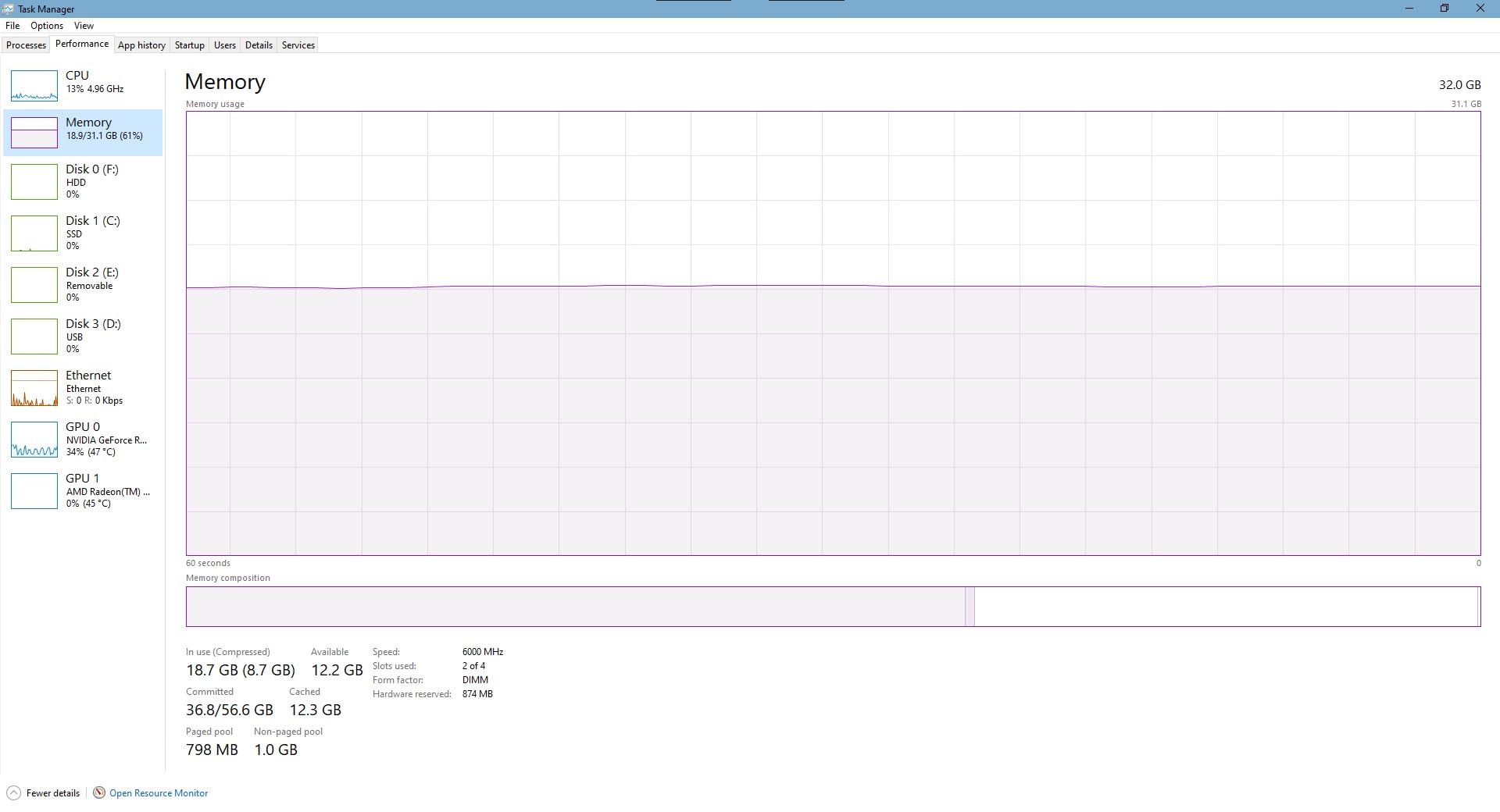
How to tell if you are RAM-bound. On Windows, open Task Manager and watch the Memory column under Processes while scrubbing your timeline. If committed memory sits near 90% and the NLE process is pushing to the page file, you need more capacity, not faster memory. In Resolve, the memory and GPU meters on the workspace page tell you the same story, and the distinction matters: if the GPU memory meter is full, buy a bigger card.
ECC and workstation memory. Every kit in this guide is non-ECC UDIMM, which is correct for a single editing workstation. ECC-registered server memory is a different category with different platform support and is not a drop-in upgrade for a desktop.
Frequently Asked Questions
Which RAM is best for video editing?
A matched 32GB two-module kit at 6000 MT/s with CL30 or CL36 timings is the best all-round choice for 4K video editing in 2026. If your work reaches 6K or 8K, runs Fusion or After Effects stacks, or edits RAW footage, step up to a 64GB matched pair. Speed matters far less than capacity: a faster 32GB kit never compensates for a project that does not fit in memory.
What is the recommended RAM for video editing?
The recommended capacity is 16GB for 1080p-only editing, 32GB for 4K timelines, and 64GB for 6K or 8K work, RAW pipelines and heavy compositing. Editors consistently report that more RAM is better than faster RAM, because running out of memory forces the system to spill to storage and causes dropped frames and repeated preview rendering. Above 64GB you are buying headroom, not speed.
Is 32GB of RAM an overkill?
No. For 4K video editing, 32GB is the recommended amount rather than a luxury, and Premiere Pro points to it as the sensible level. It only feels excessive if you cut 1080p footage exclusively. It is genuinely not enough for 6K or 8K timelines with large effect stacks, or for Resolve running alongside After Effects on the same machine.
Is 24GB RAM enough for 4K editing?
A 24GB kit, typically two 12GB modules, can handle 4K editing and it costs less than a 32GB pair. The problem is the upgrade path: going higher means adding four modules, and mixed capacities run at the speed of the slowest set. For a machine you expect to keep for years, buy the 32GB or 64GB matched kit now and leave the remaining slots free.
How much RAM is recommended for 4K video editing?
Thirty-two gigabytes in a matched two-module kit is the recommended amount for 4K video editing. That covers several video and audio tracks, a colour grade, and a browser and Creative Cloud running at the same time without spilling to disk. If your footage is 6K or 8K, or you add Fusion and After Effects to the pipeline, move to 64GB instead.
How much RAM for video editing in DaVinci Resolve?
DaVinci Resolve is the most memory-hungry of the mainstream NLEs, particularly with Fusion node graphs. Thirty-two gigabytes is comfortable for 4K projects, and 64GB is the sensible target for 6K and 8K, or for running Resolve alongside a second application. Watch the memory meter on the Resolve workspace page: if it fills while the GPU meter has room, capacity is your bottleneck.
Does faster RAM speed up video editing?
Somewhat, but far less than adding capacity. A higher data rate improves timeline scrubbing and can shorten export times modestly once your project already fits in memory. The gap between 5200 and 6000 MT/s is second-order. The gap between 32GB and 64GB is the one that changes how your machine behaves, because running out of memory forces slow disk caching.
What is the difference between XMP and EXPO?
XMP is Intel’s memory profile format and EXPO is AMD’s. Both store a set of tested speed and timing settings that the BIOS applies with one selection instead of manual tuning. Kits that ship both can be used on either platform. Without enabling a profile, memory runs at the JEDEC baseline speed, which is the most common reason a new kit feels slower than advertised.
How much RAM does a Mac need for video editing?
Apple Silicon Macs use unified memory that cannot be upgraded after purchase, so the capacity you choose at the point of sale is the capacity you keep. Treat it as a permanent decision rather than a swappable component. For 4K editing, aim for at least 32GB of unified memory, and step to 64GB for 6K and 8K work, Fusion or heavy colour grading.
Which RAM Kit Should You Buy?
For most editors reading this, the answer is a 32GB matched two-module DDR5 kit, and any of the 6000 CL30 or CL36 options here will serve a 4K timeline for years. Our pick is the Corsair Vengeance LPX 32GB DDR4 if you are on an existing DDR4 platform, because the 34mm low-profile modules, the limited lifetime warranty and the deepest review history of any kit we assessed make it the lowest-risk install. On a new DDR5 build, the Crucial Pro 32GB at 6000 MT/s CL36 is the balance we would choose for its clean XMP 3.0 and EXPO support and its 1.35V profile.
Step up to 64GB when your highest resolution is 6K or 8K, or when Resolve and After Effects run together. The Crucial Pro 64GB handles that capacity at a very low 1.1V, and the Crucial 64GB DDR4 is the sensible choice if you want that headroom on a DDR4 workstation without touching a BIOS. If you also want a matched 64GB with tighter latency on DDR4, the G.Skill Trident Z Neo 64GB is the only one of the three that runs CL16.
Whichever kit you choose, buy two matched modules, check the QVL for your board, and enable the profile in BIOS before you judge it. If you are still choosing a machine rather than a component, our guide to the best desktop computers for video editing covers the platforms these kits fit into, and a 6K monitor for video editing is the next upgrade most editors make.


